Connect your channels
Create blog articles for Shoper
Semurai writes articles built for search and puts them on your Shoper store’s blog. Changes made on either side stay in sync.
 TenkoSEO content
Publish an article from Semurai
Write the article
Open Tools → Content writer and write the article, or ask Semurai to write it for you. The SEO editor scores it against the pages already ranking for your keyword and suggests the terms to cover.
Add the meta title and description
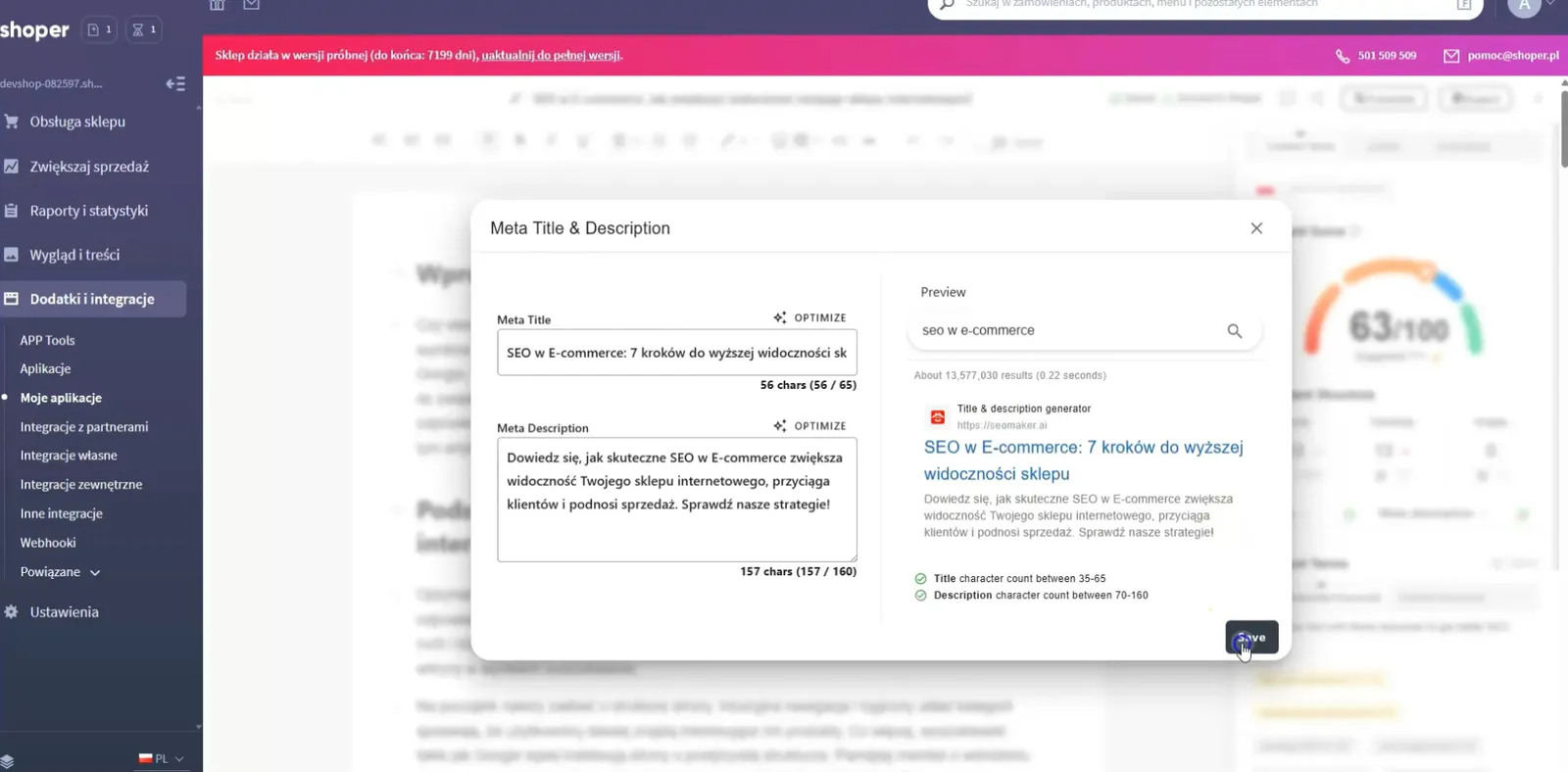
Fill in the meta title and description. The Google preview shows how your result could look.
Publish on the Shoper blog
Open Export and choose Publish on the Shoper blog…. Pick the store and the author name shown on the blog, then publish Now, or Schedule it for a time at least 5 minutes ahead.
Check the status
When the article is on your blog, the editor shows Synced. Later changes go out with Update on the Shoper blog….
Two-way sync
When a post is created, edited or deleted in Shoper, Semurai updates the article, and the editor loads the Shoper version when you return to it. If the post was deleted in Shoper, publishing again creates it as a new post.
Start from the Shoper blog editor
The Semurai app can also be opened while you add a post in your Shoper admin. These steps and screenshots come from an earlier version of the app, when it was called Seomaker.
Add a blog post in Shoper
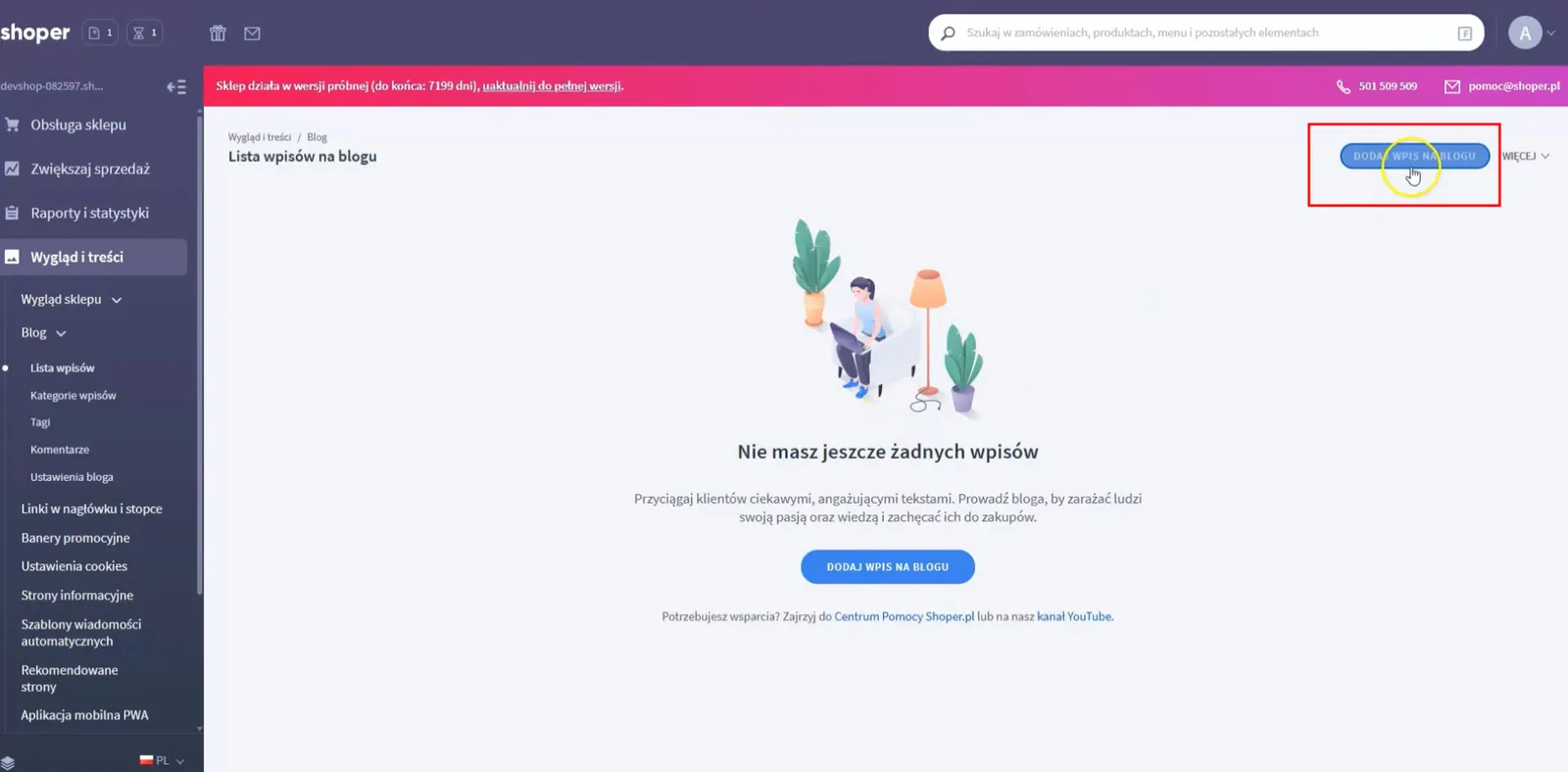
In the Shoper admin, go to Wygląd i treści → Blog → Lista wpisów (Appearance and content → Blog → Post list) and click Dodaj wpis na blogu (Add blog post).
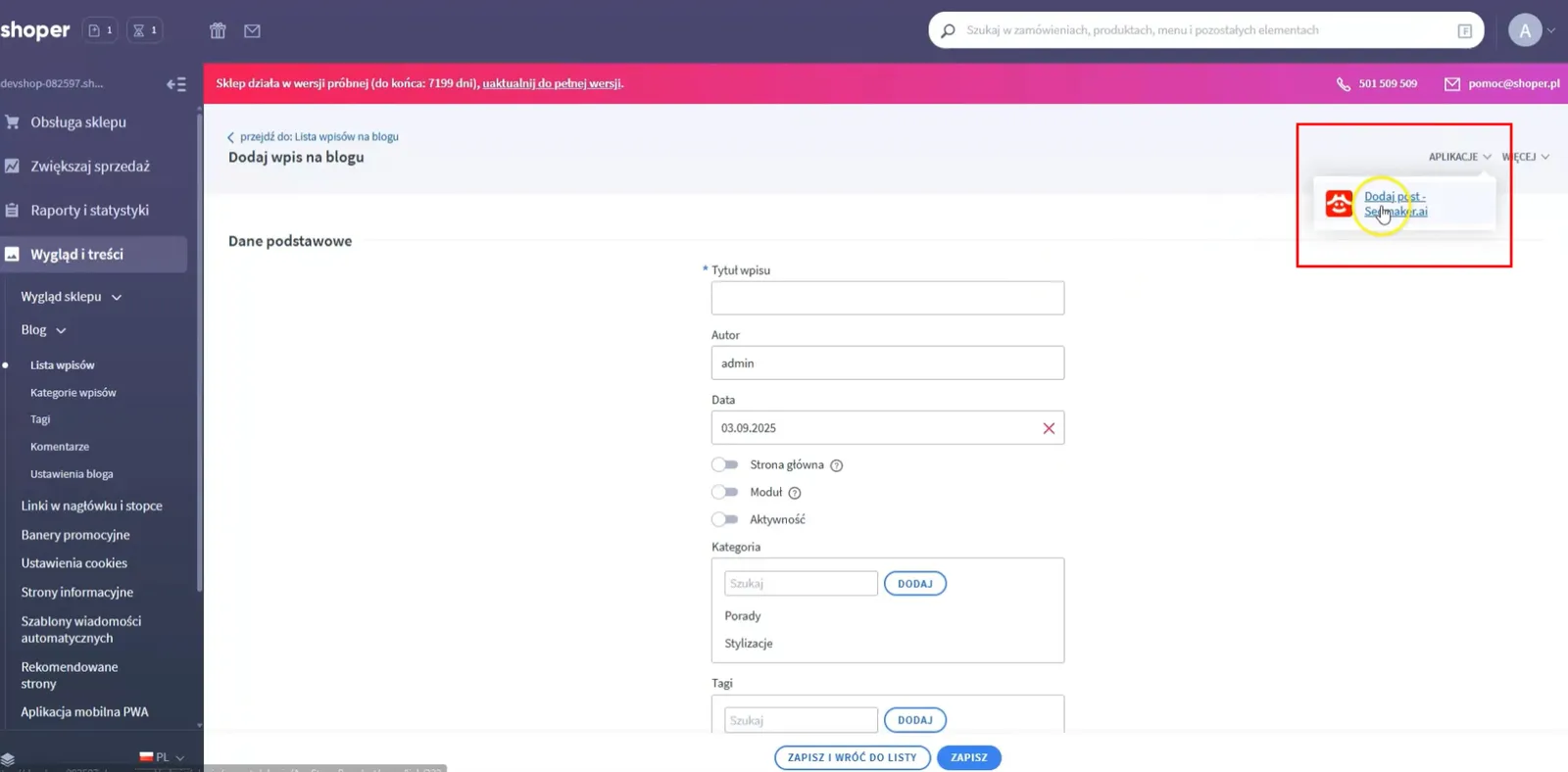
Open the Semurai app
In the top right corner of the post editor, click Aplikacje (Applications) and choose the Semurai app.
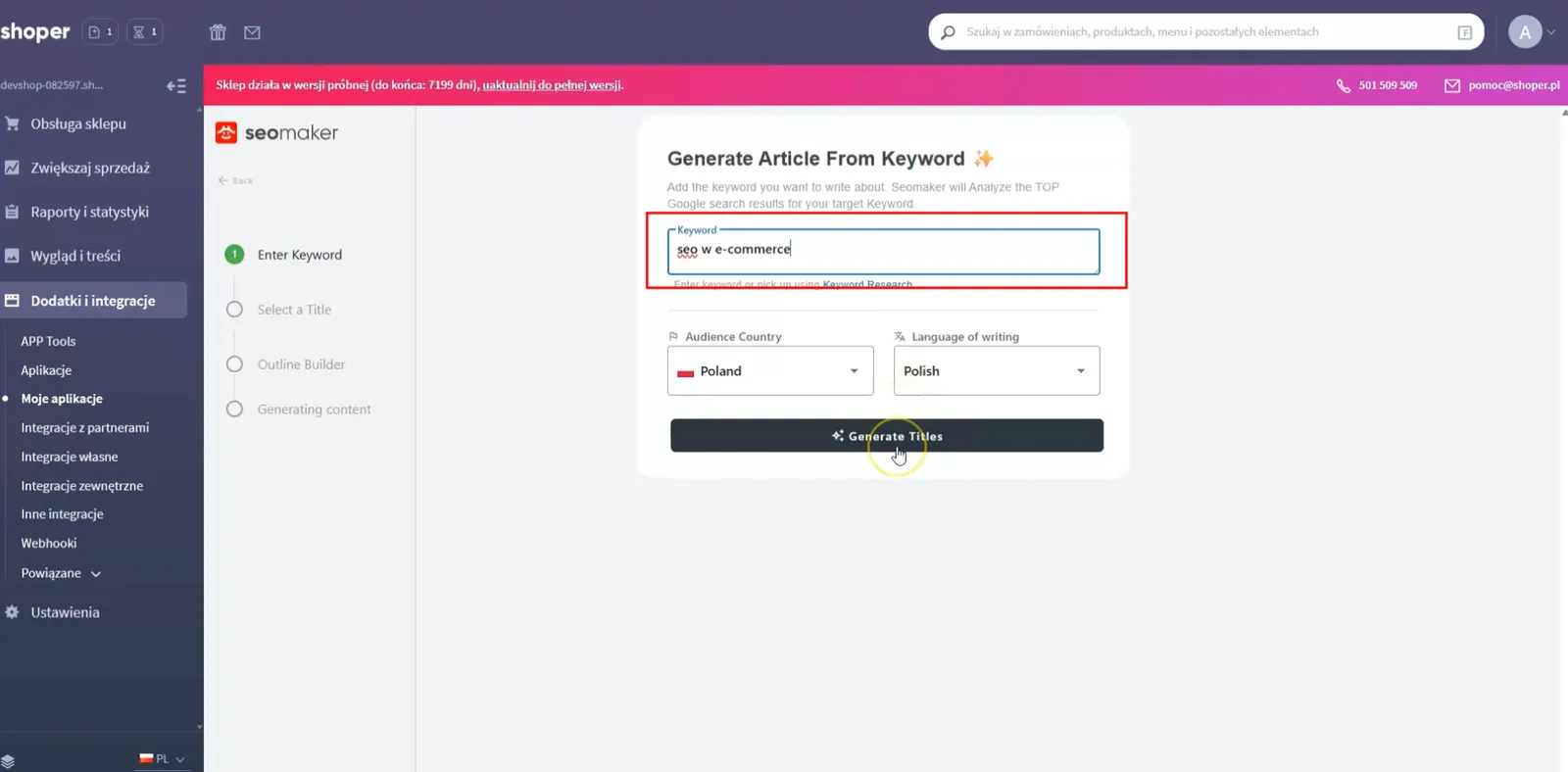
Enter a keyword
Type the keyword for your article, choose the audience country and the language of writing, and generate title ideas.
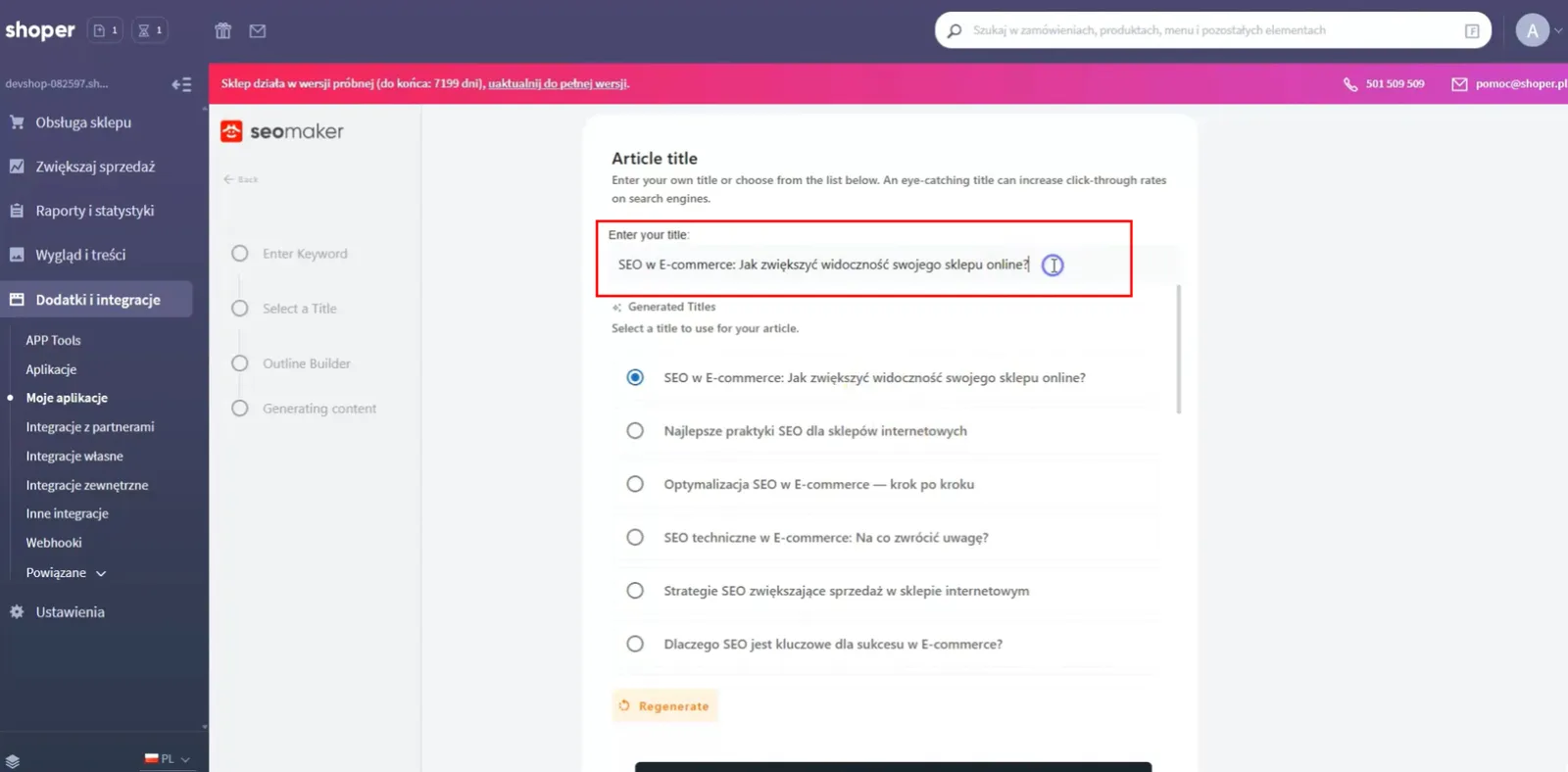
Pick a title
Choose one of the proposed titles, edit it, or write your own.
Build the outline
Generate the outline: a draft of H2 and H3 headings that you can reorder, edit and extend before the content is written.
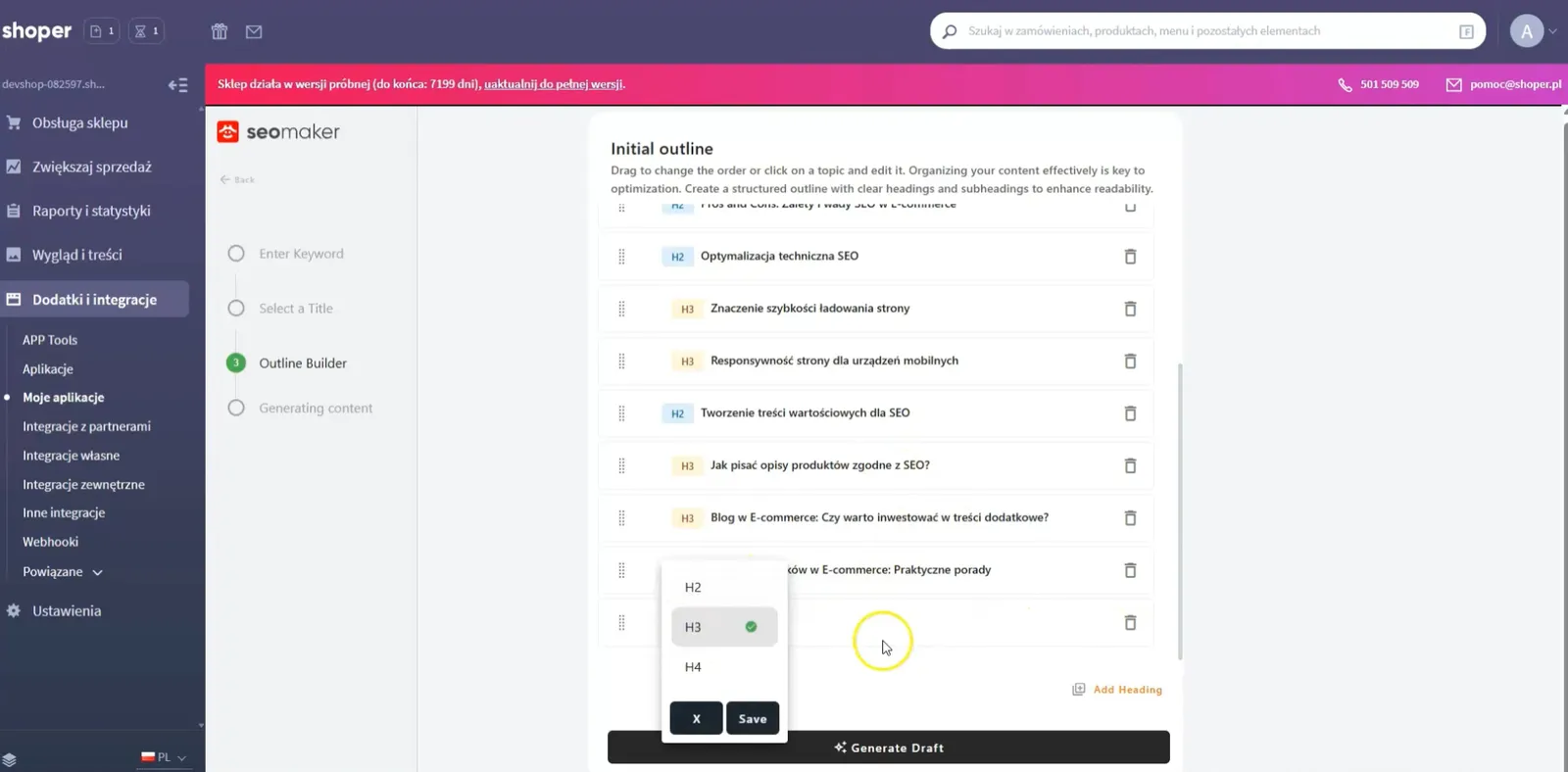
Generate and review the article
Semurai writes the article section by section. Read it and make your changes.
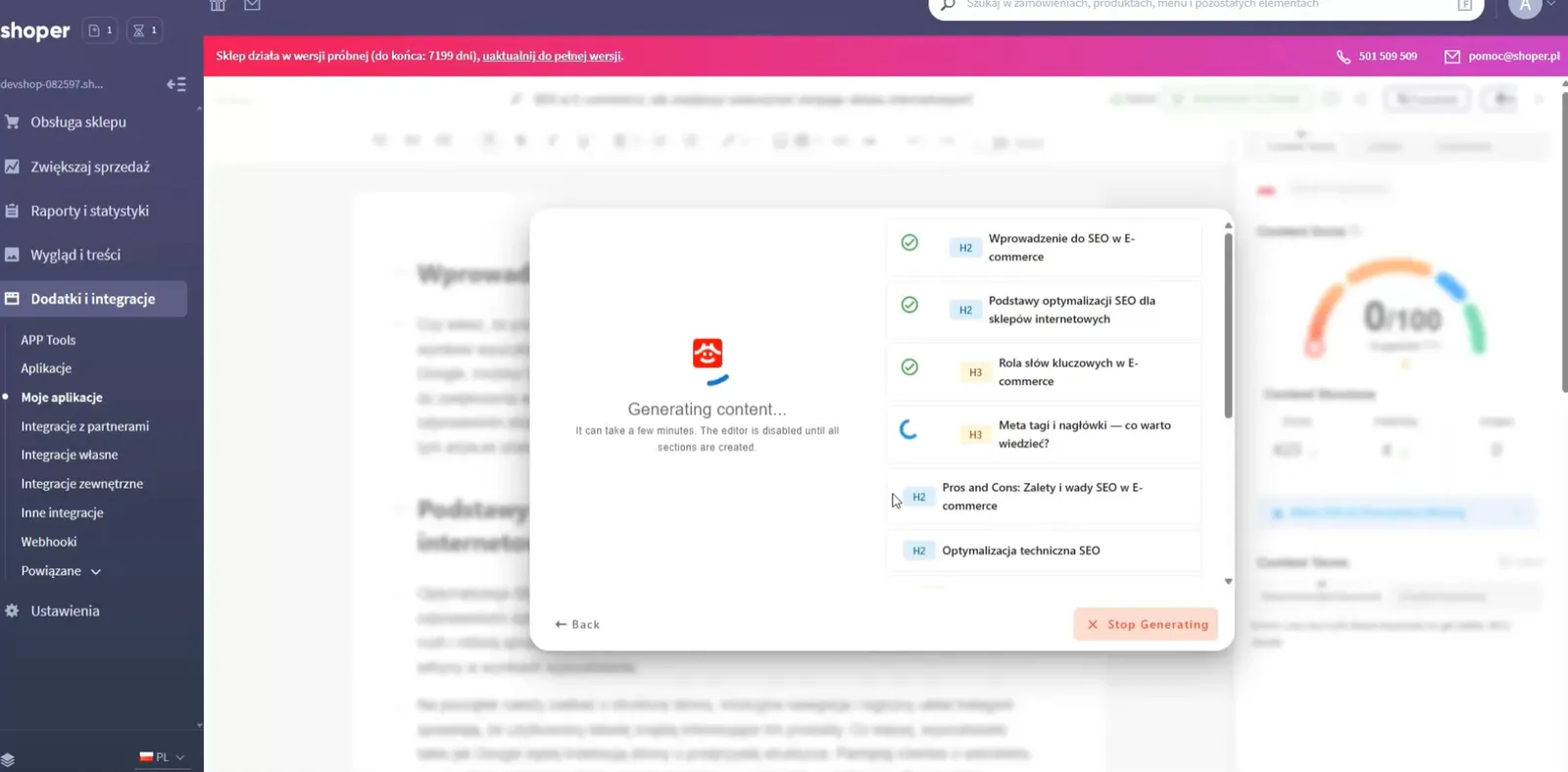
Add the meta title and description
Write or optimize the meta title and description and check them in the Google preview. Then publish the article as described above.
Related
- Connect your Shoper storeInstall and connect the app.
- Your first campaignPlan a week of articles and posts.