Create content
SEO editor: write an article
The SEO editor turns one keyword into a finished article. Tenko, the SEO content agent, suggests titles and an outline and writes the text, or you write it yourself with SEO guidance next to the text. When the article is ready, you send it to your website or store from the same screen.
 TenkoSEO content
Ways to start an article
- From the tools: open Tools → Content writer. It opens the New article page described below.
- From the chat: open Semurai Modes, choose Blog post and describe the topic. Semurai shows an outline card first; edit the headings if you like and click Approve outline to have the article written.
- From keyword research: select a keyword and click Write an article. A chat starts that proposes an outline first.
- From Opportunities: a content recommendation comes with an outline you can approve with Approve outline and generate article.
- From a campaign or a content plan: article outlines wait for your approval there, and approving one starts the writing. See Run your first 7-day campaign.
Write an article with AI
Open the New article page
The page asks What shall we write about? and offers two ways of writing: Article with AI (titles, outline and text step by step) or Write it myself. Keep Article with AI selected.

Pick how to write, then set the keyword, the country and the language. Set the keyword
Type the Main keyword, the phrase the article should rank for, and check the Audience country and the Article language. Not sure which keyword to use? Describe your business in Topic context (optional) and click Get keyword suggestions. Then click Generate titles.
Choose a title
Tenko analyses the keyword and the market and shows Title ideas. Pick one, ask for Other ideas, or type a title of your own under Or write your own title. Click Create the outline.

Pick a title idea or write your own. Shape the outline
Change the headings, their level (H2, H3 or H4) and their order: drag a heading or use the arrow buttons. Add heading adds an empty one and Add a heading with AI lets Tenko suggest the next one. Changes save on their own.

Edit the outline, then choose whether the article gets AI images. Choose images and write
Under Images, No images (the default) leaves image places in the article that you fill in the editor. Generate AI images creates images for the key sections, which takes a little longer. Click Write the article.
Follow the writing
Tenko writes section by section from the outline and the progress shows each phase: search results analysis, title, outline, writing sections, images, and the editor with the SEO score. It can take up to 5 minutes. You can leave this view: the writing goes on and the editor opens when the text is ready. Stop keeps the sections written so far; then Try again to finish the article or Open what is written.

The progress shows each phase and the section being written.
RecordingTranscript
- Type the main keyword, the country and language are set
- Generate titles: Tenko writes title ideas
- Choose the title you like best
- Create the outline: Tenko plans the headings
- Check the headings, then write the article
- Tenko writes the article section by section
- The finished article opens in the editor
Write it yourself
On the New article page, choose Write it myself, set the keyword, the country and the language, and click Start writing. The editor opens right away while Semurai analyses the search results in the background, so you can start typing. To begin with a structure, click Insert outline: Semurai adds a recommended H2 to H4 outline that you expand yourself or with Ask AI. In an article that already has text, the outline goes below it and nothing is overwritten.
Find your way around the editor
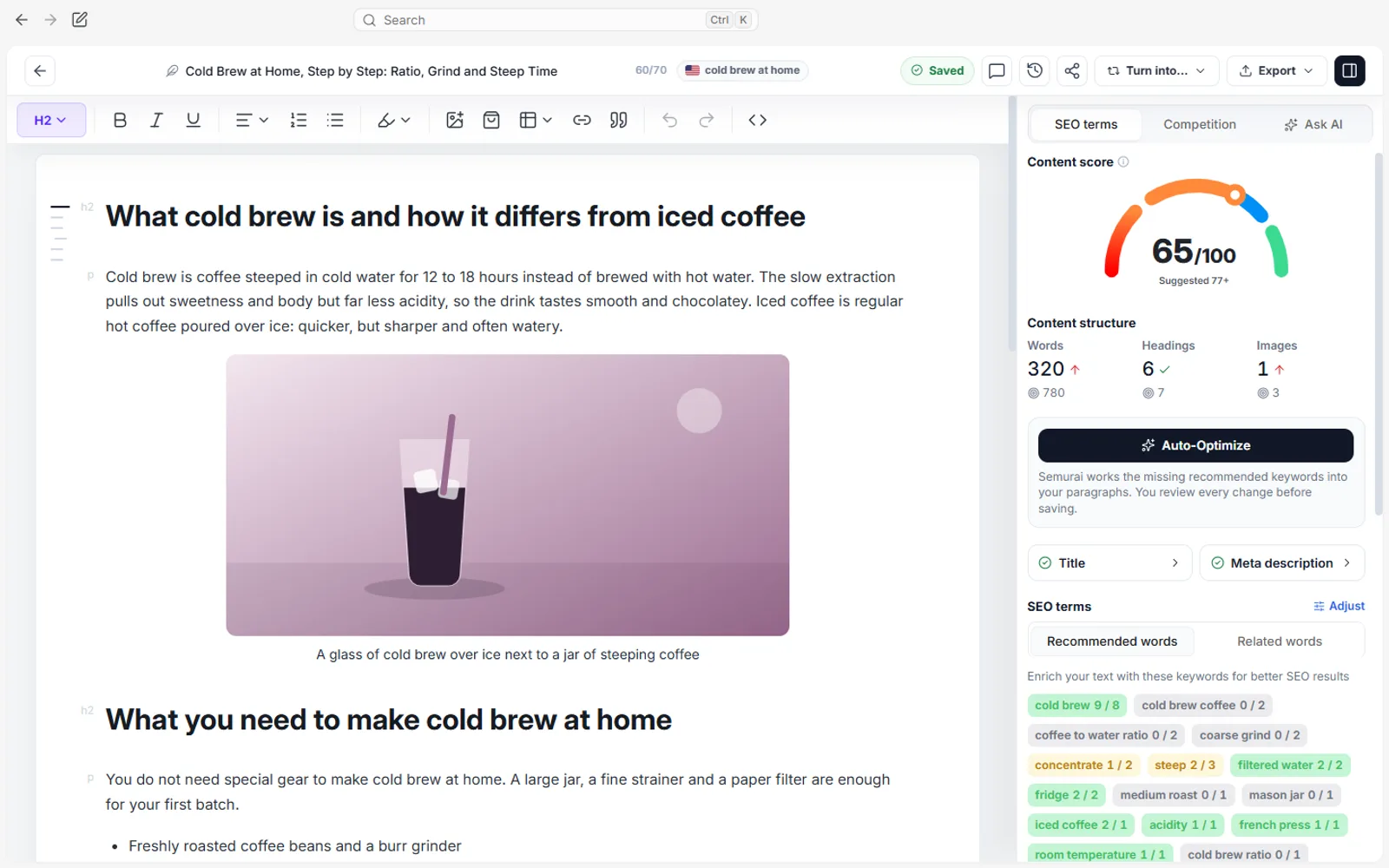
The header
- Back to documents and the article title. Under the title a hint counts its length against the recommended 70 characters.
- The save state: changes save automatically and the header shows Saved. When several people edit together, it shows the sync state instead, for example Synced or Offline · changes waiting, and you see the others’ cursors.
- Comments, Version history and Share (for the article’s owner).
- Export, the publishing menu, for people who can edit the article.
- Show SEO panel or Hide SEO panel. On a narrow screen these actions move under More actions.
The toolbar
Set the block style (paragraph or heading), bold, italic, underline, highlight, alignment, numbered and bulleted lists, quote and link. Insert image, Products and Table add blocks, HTML shows the source, and Undo and Redo work as usual. A block can also be moved by dragging its handle or with Alt + Shift and the up or down arrow.
Work on a selection
Select a passage and a small bar appears with the formatting options, Ask AI and Comment. Ask AI sends the passage to Tenko, who rewrites it right in the text.

Add images
Click Add image in an image place, or Insert image in the toolbar. You can also drop an image file straight onto an image place. The Semurai Visuals window offers five sources:
- Media library: images you uploaded or generated in Semurai before.
- Generate with AI: describe the scene, or use Suggest from article, then pick the format and the style.
- Stock photos: free images from Pixabay, with an optional caption naming the author.
- Upload: PNG, JPG, WEBP or GIF up to 50 MB from your device.
- Image URL: a direct HTTPS link to an image file.
Describe the image in Alternative text (ALT), which helps SEO and accessibility, and click Add to article. Uploaded, generated and stock images are saved in your media library.

Add products from your store
With a connected Shoper, PrestaShop or WooCommerce store, click Products in the toolbar. In Insert products, choose the store, search by name or SKU and tick up to 12 products; the order you tick them in is their order in the card. Then set how the card looks: the columns, Show price, Show button with its text and colour, and a "See all" link. Click Insert. A product card can later refresh its data from the store.

Versions
Open Version history to see the versions of the article: autosaves, changes made with AI and the versions you named. Save version stores the current state under a name. Preview shows what changed (green is added, struck through is removed), and Restore brings an older version back. The current content is kept as a copy, so nothing is lost.

Comments
Select text and click Comment in the bar above it to start a thread. In the Comments panel, filter open and resolved threads, reply, Resolve a thread when it is done, and use Copy link to point someone to a comment. New threads are started by people who can edit; people who can comment can reply and resolve threads.
Share the article
The article’s owner can click Share and invite people with a Semurai account by email, with the View, Comment or Edit permission. They get a notification and find the article under Shared. Members of the workspace with the Viewer role can read the article and comment, but not edit it.
Publish from the editor
Click Export in the header. It lists the places the article can go, depending on what you connected, and needs the right to edit the article.

WordPress
Open the dialog
Choose Send to WordPress….
Pick the site and the status
Choose the Site and the Post status: Draft (the default), Pending review or Published. Tick the Categories you want.

Send the article as a draft, for review or published. Send it
Click Send. From then on, the menu offers Update the post, Sync automatically, Open post #id and Send as a new post….
Shoper
Choose Publish on the Shoper blog…, pick the Store and the Author shown on the blog, and under When to publish choose Now or Schedule. A scheduled time must be at least 5 minutes ahead. Later the menu offers Update on the Shoper blog…. More in Create blog articles for Shoper.
PrestaShop
Choose Send to PrestaShop…, pick the Store and the Status: Draft (the default) or Publish now, which makes the article visible to your customers right away. The menu then shows whether the store confirmed it: waiting for the store, saved in the store, or the last send failed. See Connect PrestaShop.
Structured data
Copy structured data (JSON-LD) copies the Article data of the post, with FAQPage data when the article has an FAQ section. Paste it into the head section of the page or the scripts field of your CMS.
What next
- SEO optimization: Content ScoreRaise the score with terms, meta tags, links and Ask AI.
- Content calendarSee scheduled articles and posts in one place.
- Connect WordPressSend articles and keep them in sync.
- LibraryAll your content and media in one place.