Getting started
AI agents and autopilot
Every agent can take on duties: tasks it handles on its own, on a schedule or when something changes in your data. You decide which duties run, how freely the agents act and what the autopilot may approve. Publishing on your site and changes in your store always wait for your click.
 SemurAgent lead
What a duty is
A duty is a task one agent handles in the background in one project, for example Rankmaru watching for ranking drops or Somi filling gaps in your post calendar. Nothing turns on by itself: a duty runs only after you add it, and you can pause, change or remove it at any time.
Each duty starts in one of two ways:
- On a schedule: every day, every week or on a set day of the month, at the time and in the time zone you choose. For example, the Weekly ranking report runs on Mondays at 8:00.
- After a change in the data: when something happens in your project. For example, Watch for ranking drops starts when a top 20 keyword drops by 3 or more positions.
The changes a duty can react to:
- Ranking drop or gain: tracked keywords fall by several positions, or climb and enter the top 10.
- Search Console signals: a keyword just below the top 3, rising demand for a query, several pages competing for the same query, a page with many impressions but few clicks, or an article losing clicks.
- New publication: a new blog article or social post published through Semurai.
- New product: a product without SEO copy appears in your connected store.
- Campaign cycle ending: a campaign cycle ends in a few days and there is no next one.
- Health Score audit: an audit finishes, for example with a lower score or new critical issues.
- Content results and competitor gaps: an important insight about how your published content performs, or new topics your competitors rank for and you do not.
Add a duty
Open the agent’s settings
In the sidebar, open Agents to see Agent activity. Under Your specialists, click an agent to open its settings; Semur’s duties open with Lead’s duties. You can also click an agent in the agents panel next to the chat. The Agents menu appears once the agents’ background work is turned on for your account.

An agent’s settings list its duties; click one to change it. Pick a duty
Under Duties, click Add a duty and choose one of the ready duties, grouped into SEO, Social media, Store, Brand and Lead. Some duties can be added more than once, for example with different conditions or notes.
Adjust it
The editor shows the duty’s settings:
- When it runs: the schedule (every day, week or month, the time and the time zone) or the change in the data that starts the duty.
- Conditions: for example the minimum ranking drop, the Search Console signal types or how many items to take at once.
- Autonomy for this duty: as in the agent’s settings, or one of the four levels below.
- Approved in advance: actions the agent may take without asking, such as generating an image for a post or writing an outline. Nothing is published or sent without your decision.
- Notifications: after every run, when it finds something, only when your decision is needed, or never (then you see it only in Agent activity).
- Note for the specialist: extra guidance, for example to focus on keywords from one product category.

The duty editor: who the duty works with, when it runs and its conditions. Save it
Click Add duty. The duty appears in the agent’s settings with its next run, and a scheduled duty also shows up in the Scheduled tab of Agent activity.

The Scheduled tab: the next runs of your duties.
Autonomy levels
Autonomy says what an agent may do without asking you first. Set it for the whole agent in its settings, or separately for one duty.
- Run on its own: the agent starts tasks itself. If a task needs more of your limit than usual, for example to write a full article, it asks first.
- Run with pre-approved tools: a task starts on its own only when you approved every action it needs in advance. Otherwise the agent asks.
- Ask me first: the agent prepares a plan and waits for your approval. Nothing starts without it.
- Hand it to me: the agent only lets you know there is something to do. You decide whether the task starts.
Duties with several agents
Some duties pass the work from one agent to another. In Rising keyword demand, Keyres evaluates the opportunity and the intent, then Tenko prepares an article outline. In Posts from new articles, Somi drafts posts that promote a new blog article and Dezaina adds graphics to them. The duty shows who it works with, for example Works with: Tenko.
Semur’s duties
Semur, the agent lead, has no tools of his own. His duties bring the other agents together and end with his summary. Open them with Lead’s duties in Agent activity, or add all of them with the Lead and reports package of the autopilot.
- Weekly plan (Mondays at 7:30): Spynobi sums up last week from measured results and Keyres names up to three search opportunities. Then Tenko writes up to two article outlines and Somi drafts posts for the free days of the week. You get the plan of the week and one card with the proposed actions.
- Monthly report (the 1st of each month at 9:00): Spynobi reports the site visibility and what the agents’ work brought, Rankmaru the ranking trend of the last 30 days and Somi the social media results. Semur puts it all into one report.
- Daily digest (every day at 8:00): one message with what the agents did in the last 24 hours, what waits for your decision, what was or will be approved automatically and what failed. It is put together from the activity records, so it does not use your limit. A day without news brings no digest.
With the daily digest on, notifications about findings go into the digest, while requests for your approval still arrive right away.
The duty’s memory
Each duty remembers its recent runs: a short summary and what happened to its proposals. The next run reads the latest summaries and does not propose again what you rejected in the last 60 days, unless the data has changed.
In the duty editor, Duty’s memory shows the recent runs and the status of each proposal: awaiting a decision, approved, approved automatically, rejected, expired or replaced. Clear the memory lets the next runs start without knowing the previous ones.

Agent activity
Agent activity shows all background work in one place: the agent summary and your specialists at the top, and below them the work in four tabs, which you can filter by specialist.
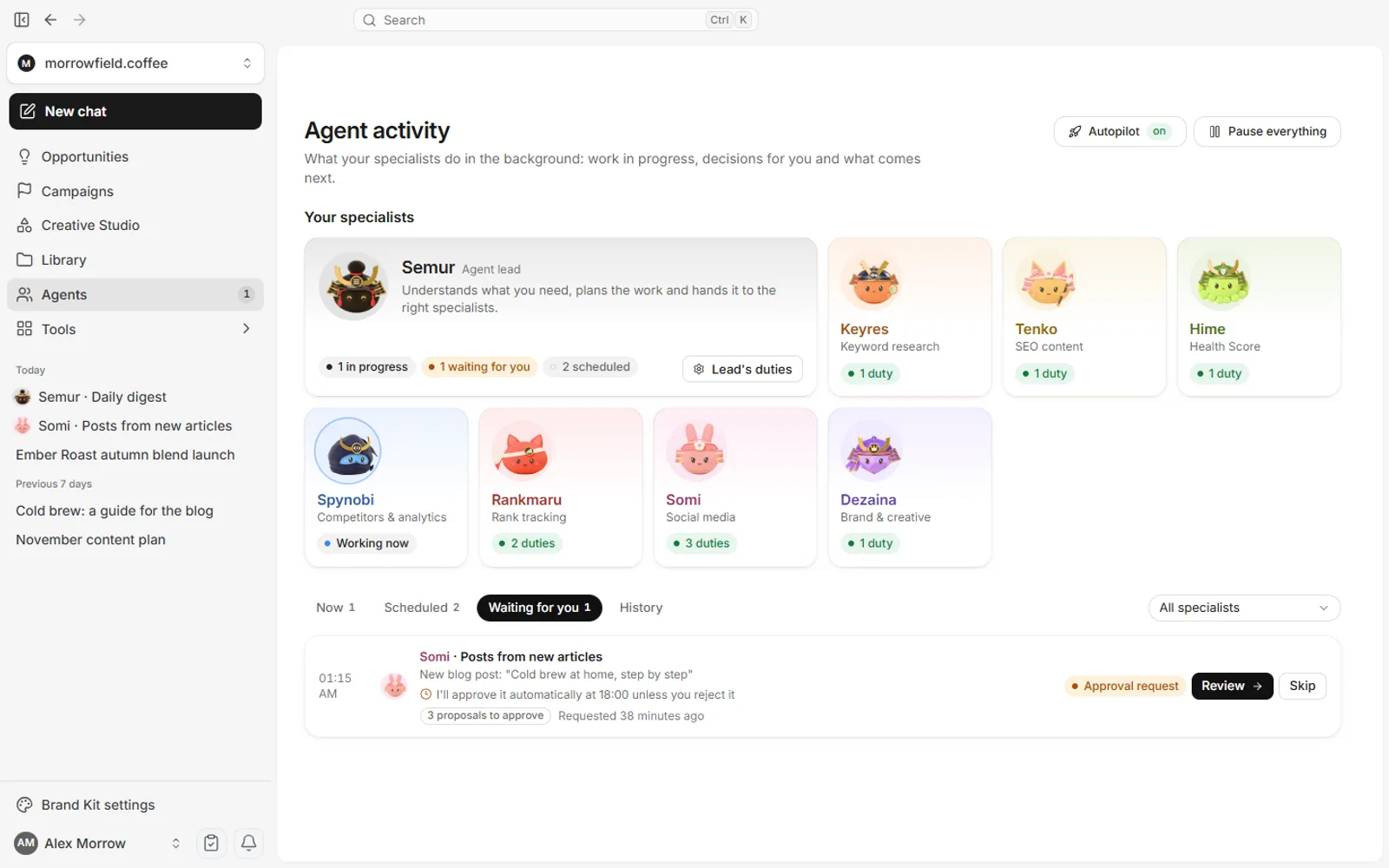
- Now: tasks in progress and how far they are. Stop ends a task.
- Scheduled: the next runs of your duties. Run now starts one right away, and Pause holds the duty until you Resume it. If a duty cannot start, for example because it has nothing to work on yet, you immediately see Not started with the reason and a hint on what to do, and no empty conversation is created.
- Waiting for you: requests for approval and tasks handed over to you. Review opens the conversation with the approval card, and Skip leaves the task out.
- History: finished tasks with links to their results, and the reason when a run was skipped.
Pause everything stops all background work: the agents start no new tasks until you resume it. Every run also has its own conversation, which you open with Open conversation.

Autopilot step by step
With the autopilot, the agents analyse the data and act on their own; you only correct them. It is off by default and works per project. Open it with Autopilot at the top of Agent activity.
Turn on duty packages
A package adds the missing duties with default settings: SEO, Social media, Store and Lead and reports. Each package lists its duties and shows which are on, which are available and which are not, for example when no store is connected. You can change or turn off each duty afterwards.

The autopilot switch and the duty packages of a project. Turn on the autopilot in the project
Switch on Autopilot in this project. The agents then approve the chosen actions themselves unless you reject them in the veto window. With it off, they ask for your approval for every action.
Set the veto window
Choose from 2 to 72 hours, 12 by default. The approval card shows when it approves itself, for example I’ll approve it automatically at 18:00 unless you reject it. You can approve or reject it earlier at any time.
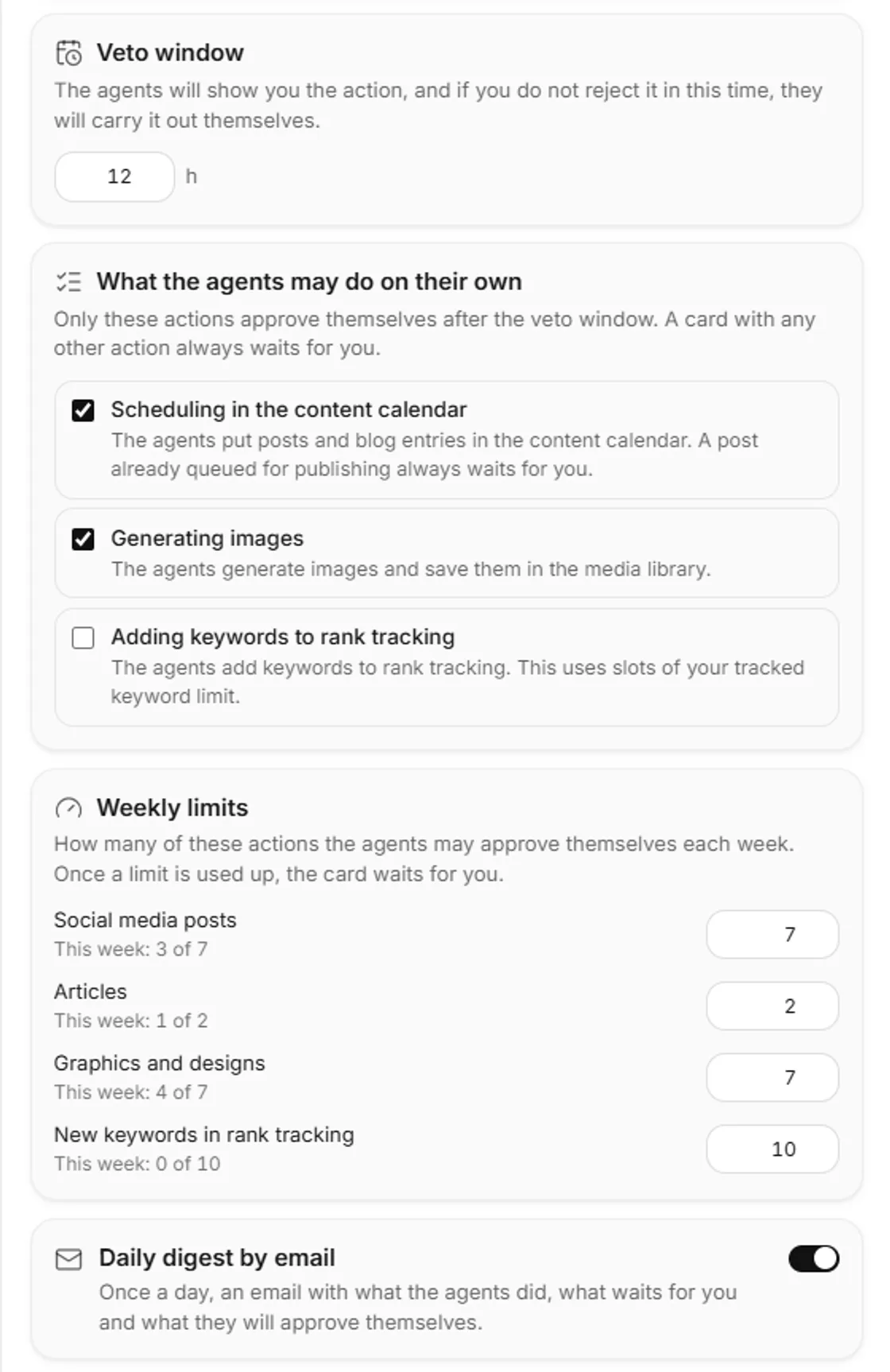
Veto window, allowed actions, weekly limits and the daily digest by email. Choose what the agents may do on their own
Only these actions approve themselves after the veto window. A card with any other action always waits for you.
- Scheduling posts and blog entries in the content calendar.
- Writing full articles as drafts in Semurai.
- Article outlines.
- Designs in Semurai Creative and generated images.
- Planning the next campaign cycle (the cycle itself still waits for your approval).
- Adding keywords to rank tracking (off by default, as it uses your tracked keyword limit).
Set weekly limits
How many of these actions the agents may approve themselves each week. By default: 7 social media posts, 2 articles, 7 graphics and designs, and 10 new keywords in rank tracking. You see this week’s use next to each limit. Once a limit is used up, the card waits for you.
Get the daily digest by email
Turn on Daily digest by email to get, once a day, what the agents did, what waits for you and what they will approve themselves. It comes with Semur’s Daily digest duty, which the Lead and reports package adds.

The daily digest: one message a day about the agents’ work.
A card approves itself only when its duty runs on its own (Run on its own or Run with pre-approved tools), every action on it is on your list and fits in the weekly limits, and nothing is paused. In the duty editor you can switch off Runs on the autopilot, so the cards of that duty always wait for you. If you change the selection of actions on a card, the autopilot leaves it to you. A card the autopilot approved is marked Approved by the autopilot.
Safety
- Always your click: publishing on your site and changes in your store always wait for you, also with the autopilot on. That covers publishing to WordPress or PrestaShop, applying changes to your site and sending drafts to your store.
- No surprises in the calendar: the autopilot never moves a post that is already queued for publishing, never turns on autopublishing and does not approve a publishing date that is too close.
- Plans stay manual: a plan that waits for your approval before work starts is never approved automatically. The autopilot only approves cards with actions.
- Background limit per agent: each agent may use a share of your plan’s monthly limit for background tasks, 10% by default and 20% once the autopilot is on in any of your projects. Change it under Monthly background limit in the agent’s settings; your own chats do not count toward it. When less than 20% of your plan’s limit is left, background work waits.
- Pause at any time: one duty, one agent (Background work in its settings) or everything at once with Pause everything.
- Data is not an instruction: what comes from Search Console, search results, your store or your posts reaches the agents only as data to analyse, never as commands.
All duties by agent
Every ready duty with its default schedule or trigger. You can change the schedule, conditions and settings of each one. Some duties need a connection or data, such as Search Console, a connected store or WordPress, tracked keywords or competitors in the project. Without it the duty is not available, or its run is skipped.
| Agent | Duty and what it does | When it runs |
|---|---|---|
| Semur | Weekly plan: the plan of the week from Spynobi, Keyres, Tenko and Somi, with one card of proposed actions. | Mondays at 7:30 |
| Semur | Monthly report: site visibility, the ranking trend and social media results in one report. | The 1st of each month at 9:00 |
| Semur | Daily digest: what was done, what waits for you and what approves itself. | Every day at 8:00 |
| Keyres | Refresh keyword opportunities: new keyword opportunities in Search Console and rank tracking data. | Mondays at 8:00 |
| Keyres | Monthly content plan: an article plan for the coming month. | The 1st of each month at 8:00 |
| Keyres | New keywords to track: keywords that bring traffic but are not tracked yet, with a proposal to add them. | Wednesdays at 8:00 |
| Keyres | Keywords close to the top 3: what to improve on the page to move the keyword up. | Search Console signal |
| Keyres | Rising keyword demand: Keyres evaluates the opportunity, Tenko prepares an article outline. | Search Console signal |
| Keyres | Keyword cannibalization: which of the competing pages should be the main one. | Search Console signal |
| Tenko | Follow-up content from results: an outline of follow-up content for an article that underperforms or shows an opportunity. | New content result insight |
| Tenko | Content plan production: an outline of the nearest article in the content plan. | Tuesdays at 9:00 |
| Tenko | Store product SEO: new description and meta proposals for products with weak SEO, best sellers first. | Thursdays at 9:00 |
| Tenko | Monthly newsletter: a newsletter draft from recently published content. | The 1st of each month at 9:00 |
| Tenko | Search result CTR fix: new titles and meta descriptions for a page with many impressions but few clicks. | Search Console signal |
| Tenko | Refresh decaying content: a refresh plan and a draft of a new section for an article losing traffic. | Search Console signal |
| Tenko | Copy for new products: description and meta proposals. | New product in the store |
| Tenko | Internal links to new articles: existing posts that should link to the new article. | New blog article |
| Hime | New audit review: what got worse in the latest audit. | Audit with a worse result |
| Hime | Weekly site health check: the Health Score and the most important site issues. | Mondays at 7:00 |
| Hime | Fix pack after an audit: fixes for WordPress; applying them always needs your approval. | Every full audit |
| Hime | New page check: a technical SEO check of the new page. | New blog article |
| Spynobi | New content outcome insights: an analysis of important results of your published content. | New content result insight |
| Spynobi | Competitor watch: topics your competitors rank for and you do not. | New competitor gaps |
| Spynobi | Monthly visibility report: traffic, position spread and the main competitors. | The 2nd of each month at 8:00 |
| Spynobi | Competitor topics: topics your competitors rank for that you do not cover yet. | Thursdays at 8:00 |
| Spynobi | Who overtook us: which domains moved above you. | Ranking drop |
| Rankmaru | Watch for ranking drops: steps in when important keywords drop noticeably. | Ranking drop |
| Rankmaru | Weekly ranking report: position changes of your tracked keywords. | Mondays at 8:00 |
| Rankmaru | Hold ranking gains: what to do to hold the result. | Ranking gain |
| Rankmaru | Ranking trend report: how the positions changed over the last 90 days. | The 3rd of each month at 8:00 |
| Somi | Fill social calendar gaps: post drafts when the coming week is too empty. | Every day at 9:00 |
| Somi | More of the posts that work: new drafts modelled on your best posts. | Mondays at 9:00 |
| Somi | Posts from new articles: posts that promote the article, with graphics from Dezaina. | New blog article |
| Somi | Next campaign cycle: a summary of the results and a proposal for the next cycle. | Campaign cycle ending |
| Somi | Marketing occasions: occasions 7 to 60 days ahead. Post drafts for those 7 to 20 days away, a campaign proposal for those 21 to 60 days away, such as Black Friday or Christmas. If nothing fits, the run ends with no actions. | Mondays at 9:00 |
| Dezaina | Monthly brand review: whether the Brand Kit is complete and up to date. | The 1st of each month at 9:00 |
| Dezaina | Media library care: descriptions for images without one, filed into folders. Nothing is deleted. | Fridays at 10:00 |
| Dezaina | Graphics for scheduled posts: graphics for the coming posts that have none. | Every day at 10:00 |
| Dezaina | Brand consistency review: whether recent posts and documents match the Brand Kit. | The 15th of each month at 9:00 |
Related
- Your first 7-day campaignGive a goal, review the plan, approve.
- Rank trackerThe daily positions Rankmaru watches.
- Publish and schedule social postsEditor, calendar and approvals.
- Chat with SemurGoals, plans and approvals in one conversation.
- Desktop appLet the agent work in panels you are signed in to.