Connect your channels
Store: product and category SEO
The Store tool brings your catalog into Semurai. Tenko, the SEO content agent, writes SEO titles, meta descriptions and product descriptions, you review every change next to the current text, and nothing reaches your store until you approve or send it.
Open the Store
Open Tools → Store. Under the title you see the platform and address of the store, Connected, and for Shoper when the catalog was last synced.

- Sync now fetches the catalog again from Shoper or PrestaShop. A WooCommerce catalog updates through the WordPress plugin.
- With more than one store, the button with the store name switches between them. Manage connections in the same menu lists the connected stores and sites; Disconnect stops syncing and leaves the data in your store as it is.
- Optimize with AI opens a chat that reviews the catalog and suggests which products and categories to start with.
- Banners above the list tell you when changes wait for your decision, when a publication failed or the store has a conflict, and when items have edits the store does not have yet.
| Tab | What it holds |
|---|---|
| Products | The catalog with the description state, the SEO score and the status of each product. |
| Categories | The category tree, with the categories whose SEO is ready and those that need optimization. |
| Other content | PrestaShop only: brands, pages and blog posts. |
| To approve | The changes Tenko proposed, waiting for your decision. |
| History | What was sent to the store, with errors and conflicts. |
The product list
- SEO score from 0 to 100. Below 70 a product counts as Needs SEO.
- Description shows No description, Short description or Optimized. For Shoper stores, Sales (90 days) shows revenue and units sold.
- The chips All, Needs SEO, No description, Inactive and Not synced filter the list. Search products finds a product.
- The order can be Default, Name A–Z, Lowest SEO score, Recently changed or, for Shoper, Sales (90 days).
- A click on a product opens its editor. The menu at the end of a row has Edit, Optimize with AI and Open in store.
Optimize products with AI
Select the products
Tick the products you want to improve, for example the ones under Needs SEO. You can optimize up to 10 products at once.

Select up to 10 products and click Optimize selected. Click Optimize selected
A chat opens with a ready request and the selected products attached: Tenko prepares the SEO title, meta description, short description and full description and shows the changes for approval before anything reaches the store. Adjust the request if you like and send it. In a conversation that is already open, the request is sent right away.

The request names the products and the store; the products are attached. Review the proposals
Tenko writes in the language of each product’s own texts, also when the store runs in another language. The proposals land in To approve.
RecordingTranscript
- Select the products you want to optimize
- Optimize selected opens a chat with the products attached
- Once you send it, the proposals wait in To approve
- Show changes puts the current text next to the proposal
- Publish to store asks you to confirm first
- The change goes to the store and leaves the list
You can also optimize one product from its row menu, a category with Optimize on the Categories tab, or ask in any chat, for example Improve the SEO of Ember Roast 250 g.
Approve changes
Open To approve
The tab counts the changes that wait. Each card says what changes, for example 3 changes: Short description, SEO title, Meta description.
Show the changes
Show changes puts the current text (Current) next to the Proposal, field by field.

Every field: what the store has now and what Tenko proposes. Publish it
Click Publish to store. Semurai asks first, because the change appears in the store right away. Confirm with Publish to store.

Approving a store change publishes it, so Semurai asks first.
- Request changes asks What should be improved?. Write your notes and Tenko prepares a new version.
- Reject in the card menu keeps the change out of the store; a note is optional. The same menu has Open in chat.
- Tick several cards to publish, send back or reject them together.
- The chips New, Needs changes and Approved, not sent filter the list.
Edit a product
A click on a product or Edit opens the editor. The descriptions are rich text with headings, lists and tables, and HTML code shows the HTML your store keeps. On the right you see the Search result preview, the SEO title, meta description and keywords with their length guides, and the alt texts of the product images.

- Write with AI next to a field writes just that field.
- Ask AI in a description edits the selected text with Tenko, as in the SEO editor.
- Generate ALT next to a product image describes the image for search engines and screen readers.
Generate with AI
Choose the fields
Click Generate with AI. Tick the fields Tenko should write, check the Language and add a Direction for AI if you like: who it is for, which tone, what should stand out.

Pick the fields; empty ones are marked. Check the changed fields
Tenko reads the product data and writes into the fields. The bar at the bottom says how many fields changed. Show changes shows the text from before under each field, Undo brings it back.
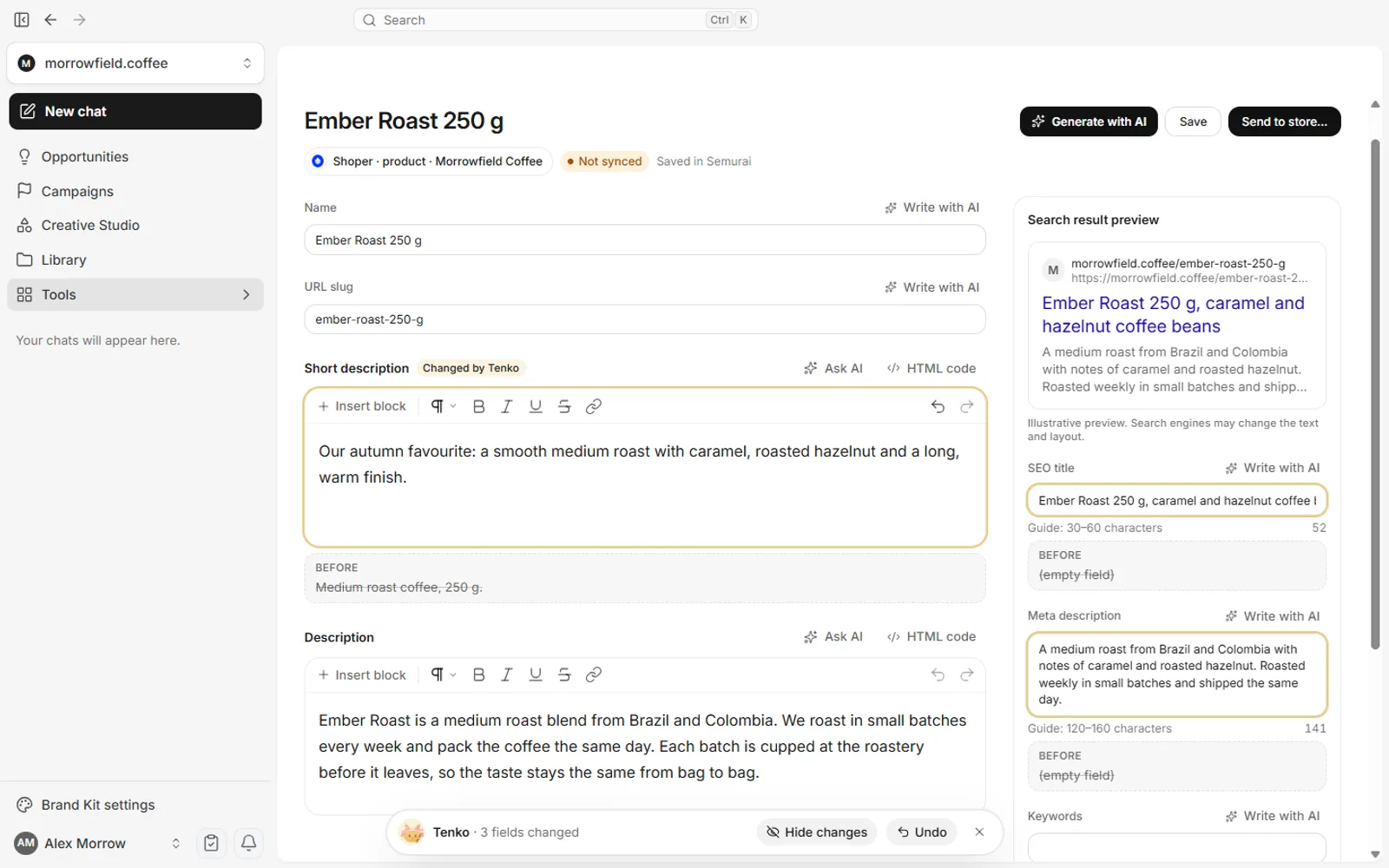
Each changed field is marked, with the previous text below.
Save, then send to the store
Your edits are saved in Semurai as you work, and Save saves them right away. They stay in Semurai until you send them, so you can come back later. Items with such edits are marked Not synced, and a banner above the list counts them; Show lists them.

When the changes are ready, click Send to store… in the editor and confirm. From the unsynced changes you can send several items at once.

| Store | What happens after sending |
|---|---|
| Shoper | The changes are saved and published in the store. |
| PrestaShop | The Semurai module applies the changes. Until it confirms, the item waits in Semurai. |
| WooCommerce | The WordPress plugin applies the changes. Until it confirms, the item waits in Semurai. |
- Opened again, a product with unsent edits says You have unsynced changes. Discard changes puts the store’s values back.
- While a proposal of the product waits in To approve, the editor asks you to decide on it first (Open the queue).
When the store changed too
If a field changed in the store after your edit, the editor shows This value changed in the store with the store’s value. Choose Keep mine or Take the store’s. You can send the changes once every conflict is decided.

Categories
The Categories tab shows the category tree with SEO ready or Needs optimization next to each category. Edit opens a category in the editor, Optimize asks Tenko for its SEO title, meta description and descriptions.

For PrestaShop stores, Other content lists brands, pages and blog posts, and New blog post starts a post for the store blog.
History
History lists what was sent to the store and when. The chips Errors and Conflicts show only what needs attention.

- A failed publication says why, for example that the store did not respond in time. Retry publishing sends it again.
- A store conflict means the product changed in the store after the proposal was prepared. Check the current version and ask for a new proposal.
- For PrestaShop conflicts you choose Keep the store version or Apply the Semurai version….
What next
- ShoperInstall the Semurai app and connect the store.
- PrestaShopInstall the module and sync the catalog.
- WordPress and WooCommerceConnect WooCommerce through the plugin.