Graphics and video
Canvas: edit graphics and presentations
Canvas is the graphic editor of Semurai. You place text, shapes, photos, tables and charts on the page, ask Dezaina in the AI chat to change the design, collect comments from your team and export the result as an image, a PDF, an MP4 video or a GIF.
 DezainaBrand & creative
Start a design
Canvas designs live in Creative Studio next to the designs Dezaina prepares. Start one in any of these ways:
- A blank size: in Creative Studio, click a Graphics tile (Post 4:5, Square 1:1, Story 9:16, Banner 16:9, Ad or A4) or pick a size under New project → Blank graphic in Canvas.
- With Dezaina: describe a social graphic, a carousel or an ad in Creative Studio. When the first version is ready, it opens in Canvas.
- From a social post: New graphic in Canvas or Edit image in Canvas in the post editor. When you are done, Use in post brings the graphic back to the post.

The editor
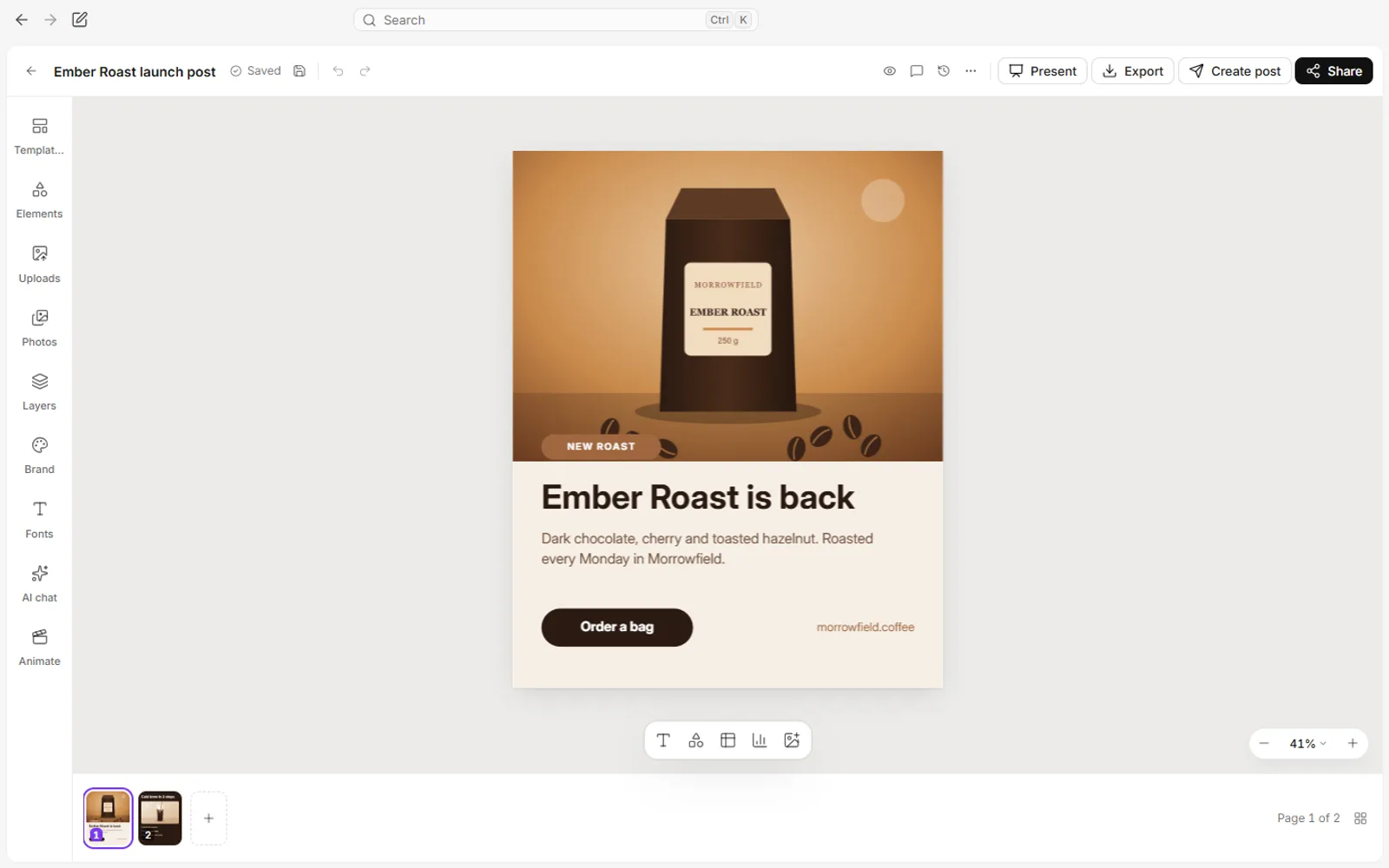
- The header: the design name, the save status, Save, Undo and Redo. On the right: the view options (rulers, grid, safe margins), Comments, Version history, the More menu, then Present, Export and Share.
- The insert bar under the page adds text, a shape, a table, a chart or an image.
- The page strip at the bottom adds, duplicates, renames, reorders and deletes pages.
- Properties open on the right when you select an element: text, appearance, effects, position and order.
- A right click on an element offers copy and paste, arrange and align, group, lock, Add comment, Ask AI and, for photos, Remove background and Enhance.
?shows all keyboard shortcuts.
Panels
| Panel | What it holds |
|---|---|
| Templates | Templates and ready layouts. |
| Elements | Text, shapes, tables and charts. |
| Uploads | Your images and the media library. |
| Photos | Free photos from Pixabay. |
| Layers | The elements of the page, in order. |
| Brand | The logos, colours and fonts of your brand. |
| Fonts | Google fonts and brand fonts. |
| AI chat | Edits with Dezaina. |
| Animate | Page and element animations. |
Alt + 1 to 9 open the panels in this order.
Templates
Search the templates or filter them by format. On an empty page a template applies at once; on a page with content you choose Replace the current page, Add as a new page or Replace all pages. With a Brand Kit, Apply my brand dresses the template in your colours, fonts and logo.

Layers
Layers lists the elements of the page from the top one down. Drag to change the order and double-click to rename. Below the list you set the page background colour.

Edit with Dezaina in the AI chat
Open the AI chat
Click AI chat on the panel rail. On an empty chat you see ideas such as Shorten the texts on this page or Match the colors to the photo.
Describe the change
Write what to change in your own words, for example make the headline bigger and the button Ember, and press Enter. To change one element, select it first: the chat shows what the request is about, or use Ask AI about the selection on the toolbar.
Watch Dezaina work
Dezaina edits the page live: you see her name on the element she changes, and the header says that Dezaina is editing. When she is done she says what she changed and suggests next steps you can send with one click.
Keep it or undo
Each answer is saved as an AI change in the version history and undoes in one step with Undo.
RecordingTranscript
- Open the AI chat next to the design
- Describe the change in your own words
- Send it: Dezaina starts editing the design
- The changes appear on the page as Dezaina works
- Dezaina says what she changed and suggests next steps

- Dezaina can also generate an image or a new design, prepare variants, create copies in other sizes and edit an image. If a new design would replace a page that already has elements, she asks first: Replace page, Add as a new page or Cancel.
- More → AI design review scores the page from 1 to 5 in readability, hierarchy, composition, images, brand fit and goal fit, and offers a Fix for each issue. The review is a guide, it does not predict campaign results.
Comments
Open Comments in the header, write in Write a comment… and click Add. The comment pins to the selected element or to the centre of the page and shows as a numbered pin. Mention people with @, reply in the thread and Resolve it when it is done. Open and Resolved switch between the threads.

Export
Click Export, set the file name, the format and, for several pages, which pages to export. Then click Download.
| Format | Options |
|---|---|
| PNG (best quality) | Size 1× to 3×, transparent background. |
| JPG (smaller file) | Size 1× to 3×, JPG quality. |
| Size 1× or 2×. | |
| MP4 video (with animations) | Full HD 1080 or 720p. |
| GIF (looping animation) | 480 or 720 px. |

- Several pages as PNG or JPG download as one ZIP file.
- The owner of a design also sees Save to media library, with a folder to save to. Files up to 50 MB fit in the library.
- MP4 is available when your device can encode H.264 video; otherwise choose GIF.
Version history
Canvas saves on its own a moment after each change. Version history (the clock icon in the header) lists the saved versions with a preview and the reason: Autosave, Saved manually, AI change or a restored version. Pick one and click Restore this version; the current state stays in the history too.

Share
The owner of a design clicks Share to:
- Invite people with a Semurai account by email as Can edit, Can comment or Can view. Change or remove the access in the same list.
- Create a view-only link: anyone with the link sees the design without signing in but cannot edit it. Allow downloading the design decides whether they can download it. The link shows its views and can be turned off with Turn off the link.

Resize
Open More → Resize…. Create copies (the default) makes a copy for every size you pick; Resize this design changes this one. Choose from Instagram square, post and story, Facebook ad, LinkedIn post, wide banner, presentation and A4, or enter your own width and height.

- Fit elements (on by default) scales the elements and fits the text to the new format. All pages resizes every page.
- Copies are named after the design with (copy) and open from the list with Open.
- For a very different shape, for example from a story to a square, ask Dezaina in the AI chat to rebuild the layout.
Present
Present shows the design full screen, page by page. The arrow keys, Page Up, Page Down and Space change pages, Home and End jump to the first and last, G shows all pages, F toggles full screen and Esc ends. Pages with animations play them.

What next
- Creative StudioDescribe a design and let Dezaina make it.
- Publish and schedule social postsUse your graphics in posts.
- Work togetherInvite people to your workspace.