Create content
SEO optimization: Content Score
The SEO panel next to your article measures it against the pages that already rank for your keyword. It shows what is missing and helps you fix it: terms to add, meta tags, internal links and questions people ask. Aim for a Content score of 80 or more.
 TenkoSEO content
The SEO panel
Open an article in the SEO editor and use Show SEO panel if the panel is hidden. It has three tabs: SEO terms with the score and everything that builds it, Competition with the headings of the top pages, and Ask AI, where Tenko edits the article with you. Right after an article is created, Semurai analyses the competition’s keywords for a moment before the terms appear.
Content score

The Content score rates the quality and relevance of the article from 0 to 100 and updates as you type. Under the gauge you see Suggested 77+; from 80 it changes to Great job, with a short burst of confetti. The score weighs:
- the number of words and headings compared with the targets taken from the top Google results,
- how often the main keyword appears (keyword density),
- readability: how easy the sentences and words are to read,
- the recommended and related terms and how many times you use them,
- the length of the meta title and meta description.
Content structure
Content structure sets your words, headings and images next to the competition’s targets. Each value shows whether it is below the competition average or the target is reached.
Auto-Optimize
Start it
Click Auto-Optimize. Semurai works the missing recommended keywords into your paragraphs, section by section, and shows the Content score you would get after the changes.
Review every change
Each adjustment is highlighted in the text. Choose Accept or Reject for each one, and move between them with the arrows.

Accept or reject each proposal before you save. Save
Click Save and confirm: only the accepted adjustments go into the article. Discard all adjustments leaves the text as it was.
Meta title and description
The panel shows the Title and the Meta description of the article. Click one to open Meta title and description. Type them yourself or click Optimize next to a field to have Tenko write it. The checklist below the fields keeps an eye on the length: the title between 51 and 70 characters, the description between 101 and 170. The Google preview shows how the article will look in the search results. Click Save.

SEO terms
The terms come in two lists. Recommended words are the terms that top pages use; enrich your text with them. Related words are phrases people type into Google. Each chip shows how many times the term is in your text out of the target, for example 3 of 5. A term used far too often is marked so you can use it less. Adjust opens Add keywords: add your own terms separated by commas, remove the ones that do not fit, or set how often a term should appear.

Internal links
Internal links suggests which words in the article to link to pages of your website, and counts the links in the text against the recommended number. Click Find links. Each suggestion shows the anchor text and the target page; use Insert, Insert all or Skip. If you change the text after the search, Refresh the suggestions.
- The suggestions come from the page map of your workspace, built from your sitemap, a crawl of the site, your audits, Search Console and connected stores. It works without any integration.
- Building the map the first time can take a few minutes. Refresh map updates it later.
- It needs your website address in the Brand Kit. Without it, the section offers Add website address.

People also ask
People also ask shows the questions Google displays for the main keyword in your country. Click Get questions from Google, tick up to 5 questions and click Add FAQ (n). Tenko adds an FAQ section: an H2 heading with an H3 for each question and a short answer based on the article. Questions already answered in the article are marked. With an FAQ section in place, the article’s structured data includes FAQPage data.

Competition
The Competition tab lists the pages that rank for your keyword, with the number of words and the headings of each. Use it to spot topics you have not covered yet.

Ask AI
The Ask AI tab is a chat with Tenko, who sees the SEO terms, the Content score and the top Google results. Ask about the draft, or select a passage first to work on just that part.
- Shortcuts: Improve, Simplify, Shorten, Expand, Turn into a list and Explain this.
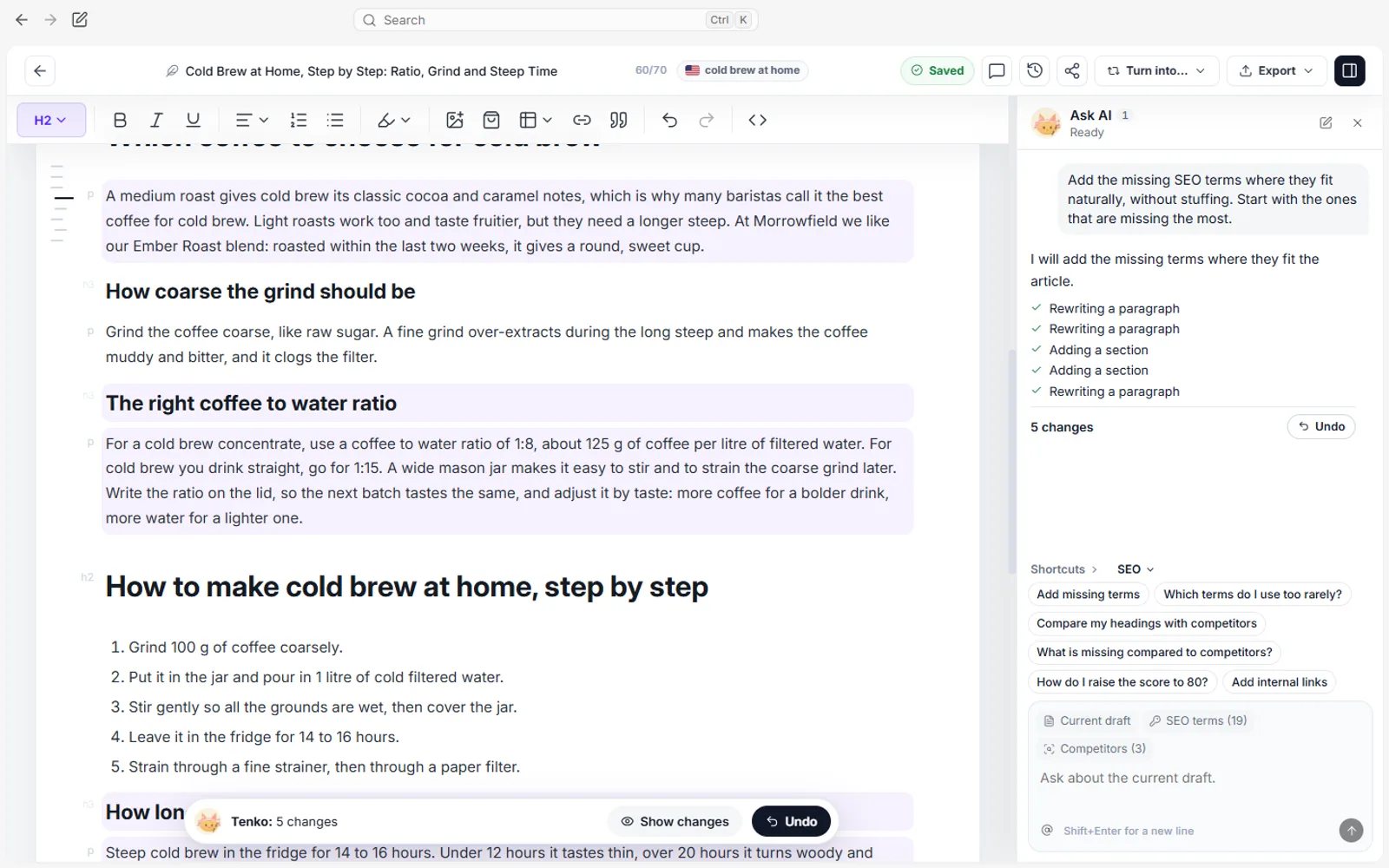
- SEO prompts: Add missing terms, Which terms do I use too rarely?, Compare my headings with competitors, What is missing compared to competitors?, How do I raise the score to 80? and Add internal links. The questions answer first without changing the text.
- Tenko edits the article live, paragraph by paragraph, with the Tenko label in the text. When she is done, Show changes highlights what changed and Undo takes back the whole turn.
- New chat starts over, and recent conversations stay in the list.
RecordingTranscript
- The Content score is 65: some terms are missing
- Open Ask AI and click Add missing terms
- Tenko adds the terms to the article live
- The Content score rises to 80+
- Show changes highlights what Tenko edited
How to get to 80 or more
- Match the length and the number of headings of the competition: check Content structure and the Competition tab.
- Cover the recommended words with Auto-Optimize or Add missing terms in Ask AI, without stuffing.
- Use the main keyword naturally in the title, the first paragraph and a few headings.
- Keep sentences short and plain, which helps readability.
- Fill in the meta title (51 to 70 characters) and the meta description (101 to 170 characters).
- Add internal links and an FAQ from People also ask.
- Ask How do I raise the score to 80? for steps tailored to your article.
What next
- SEO editor: write an articleFrom a keyword to a published article.
- Content calendarPlan when your articles and posts go out.
- Rank trackerFollow the article’s positions in Google.
- Keyword researchFind phrases worth writing about.